NOKIA ACCIDENTALLY LEAKS AN INTERNATIONAL WHITE LUMIA 900?

Did Nokia accidentally reveal a white Lumia 900 on Facebook?

Next iDevice from apple

With all the iDevices found in the market from iPhone, iPod Touch, iPads to Macbooks, do you think there’s still lacking?

The future of smartphones from the world of concept phones

Ever since the birth of science fiction in the 19th century people have enjoyed predicting what the future holds for technology.

Friday, 6 January 2012

Bye bye mouse! windows 8 to introduce eye controlled gaze interface


Tobii has unveiled its plan to launch an eye-controlled 'Gaze' interface for Windows 8, allowing users to simply look at items instead of using a mouse or touch control.
Tobii has been working to push eye control into the consumer space for several years now, but the fruits of its efforts may be coming sooner than we think. Today, the company has announced that it will release an eye control “Gaze” interface for Windows 8, allowing users with the proper equipment to use their eyes to select items and perform actions on their tablet or computer screen. 
“Pointing at something by looking at it is intuitive, natural and immediate. Using a mouse to do the same thing is less so, as it involves an intermediate step of moving a mouse-pointer around,” says Henrik Eskilsson, CEO and co-founder, Tobii Technology. “Gaze is as natural and intuitive as touch, as precise as the mouse and more ergonomic and effortless than both. Once you have experienced Gaze, a laptop without it feels just as ancient as a laptop without a touch pad.”
The Gaze interface, which we’ll check out at CES next week, will translate Windows 8′s built-in touch gestures–like slide to drag, tap, pinch to zoom, and swiping–into eye control actions, which are performed in coordination with a touchpad. The only downside is that you have to have a special infrared eye sensor attached to your laptop or tablet to do it. Tobii is hoping to work with manufacturers to build the technology right into future devices. Last year, we got the chance to check out the company’s prototype eye-controlled laptop built in coordination with Lenovo and more recently Tobii launched an eye-controlled arcade game in New York.
We’ll give a complete hands-on of the new technology when we meet up with Tobii on the show floor next week. Windows 8 is currently scheduled to launch later this year, possibly around September. 
The video below gives a brief demonstration of Tobii’s concept. 

Get a better night’s sleep with these gadgets and apps


Getting up late? Studies have shown that most adults need 7-8 hours of sleep a night to feel healthy and avoid sleep deprivation symptoms like fatigue, memory loss, lack of focus, and a weakened immune system. That number can vary from person to person, but aiming for 7-8 hours each night is a good goal. Even if you follow every other tip and trick out there, if you aren’t in bed for as many hours as your body needs, you won’t feel awake and healthy during the day. Unfortunately there aren’t any gadgets that will actually make you sleep more hours, so you’re on your own for this one. 

Create a routine and turn your gadgets off

It’s common knowledge that you will sleep better if you go to bed and wake up at just about the same time every day. It might be tempting to sleep in on the weekends, but your body clock will be less confused if you stick to a more consistent schedule. A bedtime routine might also help, particularly if you commit to turning off your gadgets 30-60 minutes before you head to bed. The blue light that comes from our computers, TVs, and phones can keep our brain awake and prevent us from falling asleep even if we’re tired. If you have trouble turning your thoughts off, try a white noise machine or an app like Relax Melodies (free and $2.99 versions), which lets you create your own combination of ambient sounds to soothe you into a deep sleep. 

Tracking your sleep

Here’s where apps and gadgets come in handy. If you’re looking to improve your sleep quality or just the number of hours you spend asleep, one of the best ways to do that is to start tracking your sleep every night. There are many different options, from inexpensive and simple to high-end products that offer premium accuracy. Here are a few that will help you get a handle on what your sleeping patterns actually are before trying to change them. 
This system is likely the most accurate of any consumer products that we’ve seen, but it comes with a catch. The Zeo system consists of a monitoring band that you wear around your head when you sleep as well as a small docking station. The soft headband monitors your movements as you sleep, creating sleep charts that differentiate between light sleep, REM sleep, and deep sleep. With the free accompanying app, you can set alarms (using SmartWake if you choose, we’ll explain later) and view your sleep charts from each night, including exactly how long you were in each sleep stage. 

Lark, $99
This alternative is a similar set up to the Zeo system, offering a tracking wristband as well as an accompanying app. Lark provides intuitive tracking and charts to see your sleep patterns, and even offers tips on how to improve your sleep. The wristband does the tracking and a silent alarm can vibrate you awake in the morning, avoiding conflict between couples who wake at different times. While we haven’t tested this one out yet, we imagine it has similar accuracy results to the Zeo and a wristband might be more comfortable for some. 
Wakemate, $60
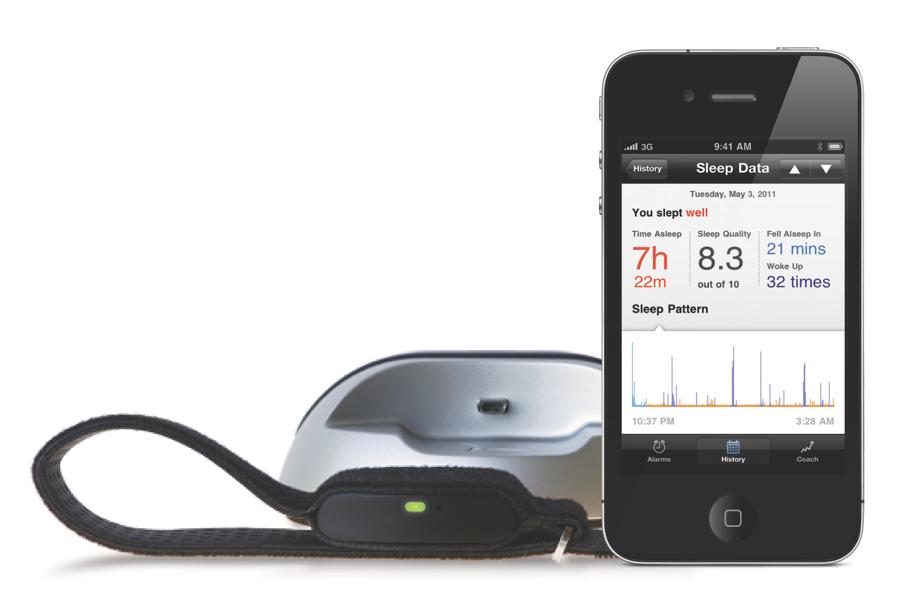
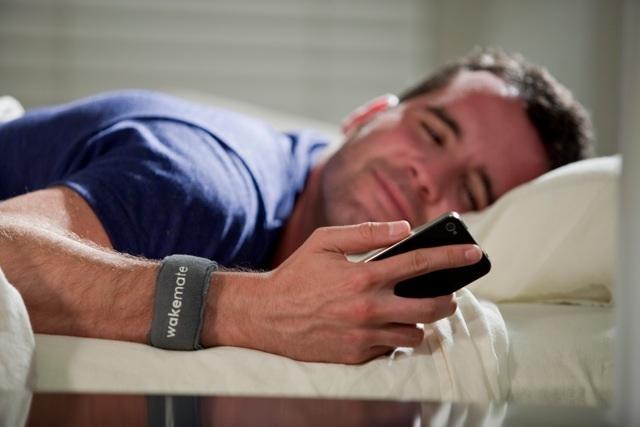
A similar concept on the less expensive side, the Wakemate uses a soft wristband to track your sleeping patterns and wake you at the most optimal time in the morning. The system works with an app and an online analytics system to provide you valuable information about your sleep cycle and what to improve on. 
There are also several tracking apps out there, like Sleep Tracker or SleepLog for iOS, that will help you keep track of how many hours you sleep each night, but they won’t be much help when it comes to seeing how much deep and restorative sleep you’re getting within that time. There are also several apps that will use the accelerometer in your phone to wake you at a more optimal time in the morning; we’ll get into that below. 

Waking up at the right time

We didn’t mention it yet, but all three of the sleep tracking systems we just told you about have one added element that can make a huge difference in how you feel on a daily basis. They all use the tracking of your sleep cycle to wake you at the most optimal time in the morning, usually up to 30 minutes before your alarm is due to go off. Chances are that you’ve experienced this phenomenon personally: one day your alarm goes off while you are sleeping lightly and you wake up with ease, another day your alarm goes off while you are in a deep sleep and you wake up grumpy and groggy even if you got the same number of hours.
How you feel in the morning (and even the rest of the day) can be greatly dependent on what sleep cycle you were in when your alarm went off that day. The sleep tracking systems (Zeo, Lark, and Wakemate) all use the information that they get from tracking your sleep cycles to wake you up during your lightest sleep around your alarm time. It might wake you up 30 minutes earlier than usual one morning, but if you were about to fall back into deep or REM sleep, it’s much better (and easier) to wake when you were in the lighter phase. 
Apps like Sleep Cycle ($.99) use the accelerometer in your smartphone to monitor your movement, well, the movement of your mattress, in hopes of giving you similar tracking and waking results. We wouldn’t count on them for accuracy, but the apps can usually tell well enough when to wake you in the morning based on your movement. 

Waking up right

We can probably all tell from experience that a loud buzzing noise or harsh flip of the light switch is not the most ideal way to wake up in the morning. Many of the tracking systems and apps we’ve mentioned offer soft natural noises that gradually increase in volume, which is definitely better than your classic alarm buzz, but if waking up is your problem, making an effort to wake up more gradually might help you get up more rested and refreshed. 
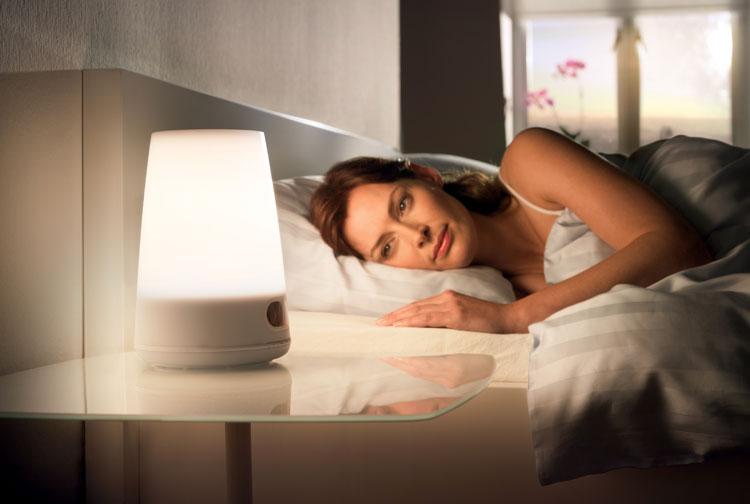
The Philips Wake Up Light ($99) is still the best version of this that we’ve seen, although there are other models out there. This alarm clock bases its design on the fact that our internal clocks are designed to wake up when the sun rises. The faux-natural sunlight lamp gradually increases its light over a 30-minute period and then plays gentle sounds to tell you it’s time to get up. The idea is that by that time, the gentle light will have allowed you to comfortably wake already. 

Pinpointing problems

There are lots of different reasons that we might not get our best sleep every night. Unless it is related to a medical disorder, chances are that you can change your sleep quality by changing your lifestyle habits. To figure out what factors cause problems in your sleep, it’s a good idea to track your sleep and keep some kind of note system on what you did that night, whether you drank alcohol, exercised, or ate a meal close to bedtime. Most of the tracking systems or apps we mentioned allow for some kind of daily journaling that will help point you in the direction of what might be hindering your sleep.
Tracking can help you notice patterns – maybe you’ll realize that you sleep the best when you exercise in the afternoon, or that just a couple drinks at dinner reduces the quality of your sleep. Once you figure out what factors are preventing (or helping you) when it comes to your sleep, then you have the power to change them. 

Thursday, 5 January 2012

The importance of backup


We’ve all been there, sat staring at the computer with our hands behind our heads in dismay as our hard drive fails and all those brilliant holiday snaps are lost and gone forever. You know that no amount of turning it off and on again will help recover them, but you do it anyway.  
It is then that you realize that you have all your passwords saved in one vital document on your desktop and that all-important presentation you have to do tomorrow morning at work has disappeared into the world of unrecoverable data.
This avoidable catastrophe always involves a lot of swearing involved, a lot of turning the computer off at the mains and giving it a good crack to give it some encouragement to whirr back to life. Yeah, it’s happened to the best of us, and we’ve all learnt from our mistakes and invested in some form of backup from Western Digital or an online cloud drive. Next time you will too, right?
We thought as much, so here’s our simple guide of four easy options to backup and save yourself the stress and even money of trying to recover lost files.

CD/DVD

Copying important files onto CDs and DVDs is a simple, if almost prehistoric, way of lowering the risk of losing everything. However, if you backup as often as you should, you’ll end up with piles and piles of old CDs with old files all over your office or spare bedroom. From bookcases, to shelves, to drawers and floors covered from top to bottom in dust-gathering discs, you’ll be surrounded by a sea of data that will take hours to filter through to find what you need.

USB sticks

Uploading your files to a small flash drive is much simpler than creating and sorting through multiple discs. However, with small amounts of memory you’ll have to use several to backup everything you need to. If you choose to use mini flash drives to store all of your photos, music and work files, keep them in a safe place as they are easily lost under car seats, in handbags and in the pub.

External hard drive

Attach a Western Digital external hard drive to your computer to backup your files with simplicity and ease. Just keep the hard drive hooked up to your PC or Mac and let the hardware do the hard work. External hard drives can continuously update and backup everything, so you’ll never need to worry if you forget to drag something across.

Online backup

If you don’t want to backup your backup, go for an online service which will come hand-in-hand with yearly fees in return for peace of mind. This is the easy solution for anyone who constantly forgets to keep their documents safe. There are some free options available online, but they often don’t give you the luxury of a full computer backup.

Internet Explorer 6 laid to rest after 10 years of service


Mourning the passing of a trusted companion can be tough to cope with but for Microsoft, there’s reason to celebrate. To mark the demise of Internet Explorer 6, Microsoft baked a cake and popped open the proverbial champagne as IE6 usage in the US has dipped below 1 percent.
The sixth major revision of Internet Explorer, IE6 was initially released in August 2001 right around the time that work on Windows XP was being wrapped up. The browser lived a long and prosperous life but Father Time eventually caught up to IE6 and it became the butt of jokes worldwide.
In a recent blog post, director of Internet Explorer marketing Roger Capriotti admits that Microsoft has been as eager as anyone else to see IE6 fade away. In fact, Redmond even launched an IE6 Countdown site last March to help accelerate the process. The site has generated over 2.7 million visitors and 5.6 million page views in less than a year. That day has finally come as the US joins Austria, Poland, Sweden, Denmark, Finland and Norway in dropping below 1 percent usage of IE6.
Capriotti hopes that the trend continues in other parts of the world where developers and IT professionals can consider the product a low priority and stop wasting time supporting such an outdated browser. Naturally, he goes on to urge these users to move to a more modern browser like IE8 or IE9.

Windows 8 refresh and reset options detailed


Microsoft has been steadily releasing information about its upcoming operating system on its MSDN Building Windows 8 blog, providing those interested with snippets of new functionality as we draw ever closer to its release. The latest news from the company's blog involve the refresh and reset PC functions on Windows 8.
"We’ve built two new features in Windows 8 that can help you get your PCs back to a "good state" when they’re not working their best, or back to the "factory state" when you’re about to give them to someone else or decommission them," Desmond Lee said in his post on the MSDN blog.
It will enable users of the OS to reset their computer in much the same way other devices like smartphones can be reset without the need for any discs or third party utilities. The new option will be available from the control panel, the pre-boot recovery environment and via a bootable USB drive, which should cover any state of repair that your computer might be experiencing.
Microsoft has thought of users storing sensitive data as well, with Windows 8 introducing the option to securely erase the hard disk. It strikes a balance between security and the time it takes to wipe the disk. It usually takes hours/days to scrub a disk with multiple passes, which is often overkill for those using a computer for social purposes.
"Instead of just formatting the drive, choosing the "thorough" option will write random patterns to every sector of the drive, overwriting any existing data visible to the operating system. Even if someone removes the drive from your PC, your data will still not be easily recoverable without the use of special equipment that is prohibitively expensive for most people," Lee wrote.
The refresh feature is another step in the right direction. It will enable users of the OS to restore the computer back to its original installed state. Essentially, it will keep all personal files and personalization settings intact, but remove all applications installed via CDs or the internet as well as changing most settings back to the original, newly installed state.
Wireless settings, mobile broadband connections, BitLocker and personalization settings as well as each user's files will all remain intact during a refresh. As will account login settings and metro applications. Other settings like firewall permissions and file type associations will be removed, as these are commonly the cause of computer issues. The exact list will be tweaked over time according to Lee.
It would usually be a last resort, but the capability to restore the OS back to good working state with settings and data intact without the use of any discs or having to enter product keys will certainly make life easier for users. They would no longer need to perform a backup before refreshing Windows.
Microsoft has also considered those of you that prefer to install your applications or add and remove Windows features and then make a system image to use at a later time. It will be possible to create your own custom refresh image using a new command-line tool.
The detailed recovery times are impressive as well. In most cases, it will take less than nine minutes to refresh a computer back to its "good working" state whilst maintaining personalization settings and data. That is without question a saving of several hours for those of you (like me) with a lot of software to load on a fresh install of Windows, if you take advantage of the custom image tool.
The reset times are equally impressive, with a thorough reset of the computer taking just under 24 minutes to achieve. A quick reset will have you back up and running in under seven minutes, a feature that users and system administrators will all certainly be relieved to see.

Wednesday, 4 January 2012

nokia's upcoming phones


Nokia is planning to launch the Lumia 900 Ace (codenamed Eloko) at the 2012 Consumer Electronics Show next week in Las Vegas. Specifications and images have leaked out ahead of the introduction that paints a pretty good picture as to what we can expect from Nokia’s flagship Windows Phone.
For starters, the handset will feature a 1.4GHz processor, a 4.3-inch WVGA Nokia ClearBlack AMOLED display, 512MB of RAM and an 8MP rear-facing camera. At 4.3-inches, the screen is a bit larger than the 3.7-inch display found on the Lumia 800 but the resolution remains the same. The phone is said to ship with the Mango build of Windows Phone and includes an 1830mAh battery. 
PocketNow is pretty certain that the device will be sold carrier locked but that it will contain the 1700MHz band required to work on T-Mobile’s 3G network. This means that a workaround to run the 900 via T-Mobile will likely surface soon after launch.
The Ace weighs in at 160 grams, just 18 grams more than the Lumia 800 which is likely due to the larger screen and the addition of an LTE radio. Thickness is expected to be around 12 millimeters.
There’s no mention of pricing for Nokia’s high-end Lumia phone but we should know more next week at CES. In addition to the 900, Nokia is rumored to be preparing another mid-range device for launch as well, the Lumia 719. The 900 Ace is set to launch with AT&T and we suspect the 719 would follow the same path.

Everything You Need to Master Your New Smartphone


Well, first of all let’s agree to this simple fact that “all smartphones aren’t that smart also”. And many of them will disappoint you more than you would ever imagine. So, in case you are one among the list of those who are fed up of holding on with an idiotic and not so smart cell, then we are at your rescue. Here are some quick tips that could make your companionship with your new device more comfortable. So, give it a thought before dumping your cell phone too early. It could be a bad idea. 

Battery Blues

Battery issues are not new for regular smartphone users. They could be the most likely reason for you to get rid of your device. But you don’t need to make any hurry. One thing that you should always control yourself from doing is charging you phone right away. Just let that left up charge get completely drained off and then only plug-in for charging. Charging your smartphone when the battery is only half way down could decrease the efficient charging in the future. Well, occasionally you can also make a slip to this rule, but sticking to it will only ensure a healthy and long life for your cellphone.

Data shifting

The main key to shifting you data successfully from one android to another lies in three golden words i.e. “One Good Sync”. But this is not the same case if the transfer is done from an idiotic phone to a smart one. You can keep the following things in mind to get it done correctly:
  • The best and simplest option is to employ you carrier to perform the task, especially in case you are using the same carrier. So pull down at your nearest service center to get the work done. Don’t forget to ask the fee that they usually charge in case you are switching carriers.
  • For GSM phone users, SIM card provides for an easy transfer. You just need to find the option that will enable you to ‘transfer contacts’ to a SIM card. When you are done with writing your contacts on the SIM, take your old card out and insert it into the new phone. But, yes make sure that you carefully transfer all you contacts onto the new SIM.
  • Google Sync also comes very handy to transfer data in some of the smartphones, that includes Nokia, Blackberry, Windows and Iphone. Once you are done with adding your contacts into your Google acoount, you can return to the cloud and let it update contacts. This Google account thing also works for android. You just need to sign up from your new phone and and do the syncing. You can also sign up for a free iCloud to transfer data for your old iPhone to the new one.

Synching Blues

For Google and Apple users, you have the iTunes that is one single stop for you to sync songs, videos, books, photos and apps. Well, many of you will be in favor of the Cloud, but in case you are not a cloud fan, then iTunes is there to sync your email, calendar and contacts. Now comes the Blackberry, where you have Blackberry Desktop Manager to solve the purpose. You just need to download the app to get through all the syncing business. You can too opt for Doubletwist, a cross platform app if you have an Android or Blackberry.

Apps

Who can imagine a Smartphone without apps??? Smartphones are all about the apps, but the confusion lies in which are the best picks. So choose smartly and the ones you would enjoy the most.

Accessories and the confusion

Well, your smartphone might not be perfect, but that still doesn’t call for going over the top with accessories. They certainly can’t make up for the unavoidable slip-ups. Over-indulgence in such items would only burn another hole in your pocket. So, here goes the list of some items that are worthwhile to splurge on:
  1. Headphones: Headphones are your smartphones ultimate soul mate. When it comes to smartphone, some of you won’t even give your iPod a second a look to listen your favorite playlist. But the first and the most important thing you should be doing is to trash away the headphones that came along with your phone. In case you want to go frugal, then Sennheiser HD280 is a good option.
  2. Case: First of all, remember that no case and I mean no case could save your smartphone after hitting a hard floor. But still something is always better than nothing. So for iPhone lovers you have thousands of options to choose from as per your personality. But this might get tougher for other smartphone users. So the best way out is to go for a perfect fit that would properly case your little precious sweetheart rather wasting money on those stylish but misfit cases. Never ever make any compromises with the size and shape when it comes to your smartphone safety.
  3. Storage and Cables: Excluding the iPhone users, others will get an expandable storage arrangement for microSD card. In case your device has less than 2 GB internal storage, then you can easily go for 8GB microcards at pretty cheaper prices. If we talk about cables, then it’s always for the good to have an extra charging cable. You have an iPod dock connector for iPhones and for others a mini USB cable. Such cables will never disaapoint during a vacation or a road trip.